Connect your Gmail
Gmail is the one email connection REHL offers today. It takes about thirty seconds and it is the switch that turns the Inbox on.
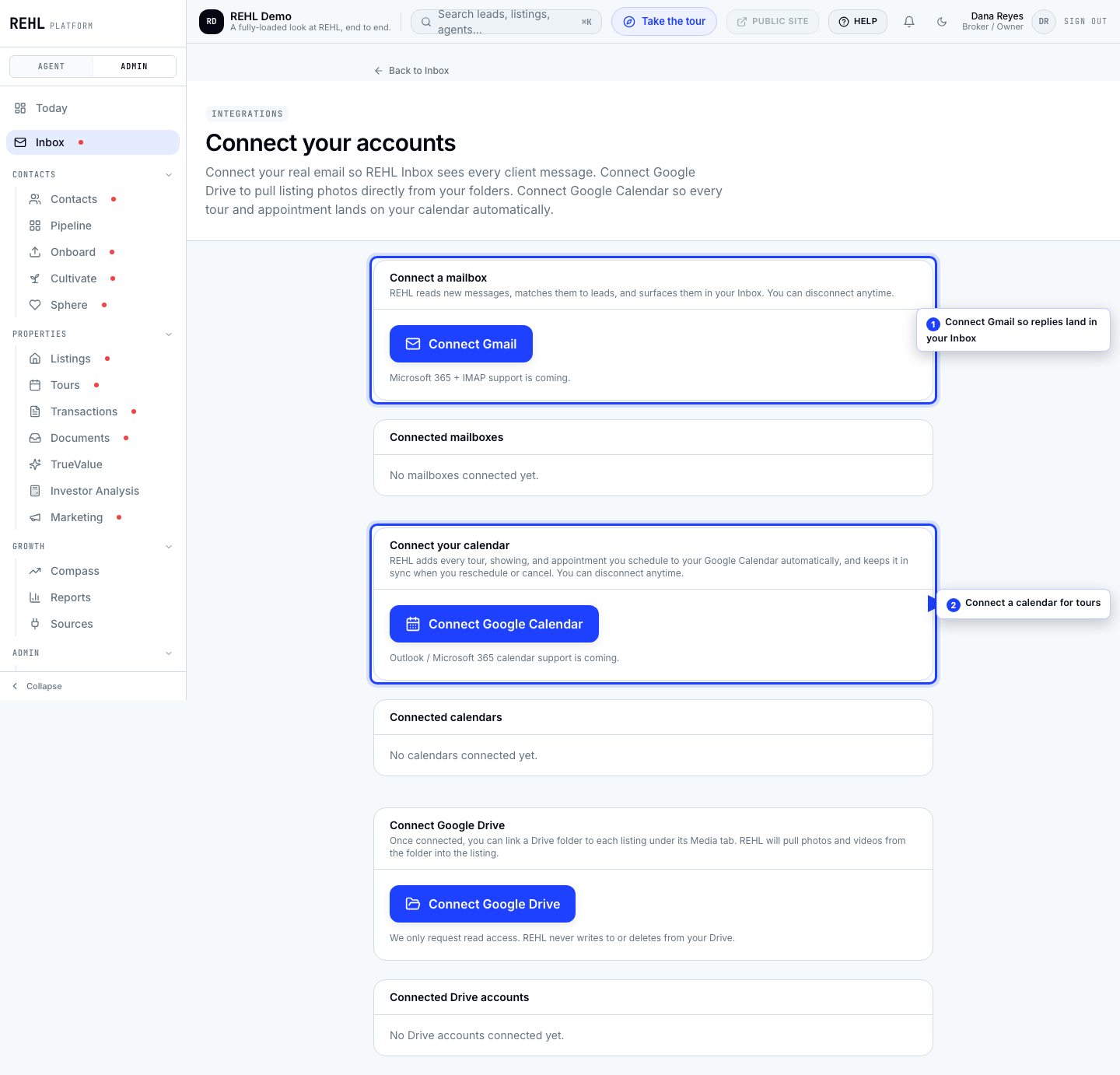
Connect it
- Go to Inbox, then Settings.
- Click Connect Gmail. REHL walks you through what Google's "unverified app" warning means before you leave for Google (our Google verification for this feature is still in progress, so the warning is expected).
- Click through to Google, sign in, and approve access.
- You land back in REHL and the account appears under Connected mailboxes.
- Wait a minute. The first sync pulls in about a week of recent mail.
The connection is yours, not your brokerage's
Each person connects their own mailbox. Connecting yours does not pull in a colleague's mail, and it does not cover the whole brokerage. Everyone who wants their email in REHL connects their own.
Reading the status
- Active: syncing normally. The line also shows when it last synced.
- Revoked: access was withdrawn, usually by changing your Google password or removing REHL from your Google account. Reconnect to fix it.
The status badge can also show Paused or Failed, but nothing sets those today: only Active and Revoked actually happen. If sync quietly stops for another reason, the mailbox stays listed as Active with a "last synced" time that keeps getting older. If that time is not moving, disconnect and reconnect rather than waiting for the status to change.
Disconnect anytime from the same page. REHL loses access immediately. Messages already synced stay where they are.
Microsoft 365 and IMAP are not supported yet. If your mail is not on Gmail, the Inbox will stay empty for email and there is no workaround today.
Need more help? Contact support.